
Download WifiTransfer – iPhone to PC, Mac, Windows Wireless File Transfer
Overview
WifiTransfer is a desktop application designed to simplify the process of transferring files between iPhones and computers. Built for users who frequently move photos, videos, documents, and audio files between iOS devices and desktop systems, it eliminates the need for cables or complex configurations. The software operates over Wi-Fi networks, enabling fast, wireless file sharing with minimal setup.
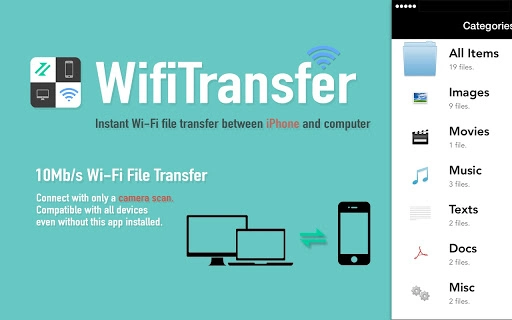
Users can connect their iPhone to a computer simply by scanning a QR code, establishing a secure local connection instantly. This makes it ideal for professionals, creatives, and everyday users who prioritize speed and convenience in file management. The application supports a wide range of file types, including photos, videos, documents, and audio files, ensuring compatibility across diverse workflows.
It also allows remote file management directly from the desktop, enabling users to browse, download, or upload content from their iPhone without physical access. The developer, Notable Apps, has focused on usability and efficiency, creating a tool that streamlines mobile-to-desktop workflows. Real-world use cases include photographers transferring RAW images, students sharing lecture recordings, or remote workers accessing documents on their iPhone from their laptop.
Key Features & Capabilities
- Wireless File Transfer Over Wi-Fi – Connects iPhones and computers via a shared local network, enabling high-speed transfers without cables. Ideal for users seeking a cable-free alternative to iTunes or Finder.
- QR Code-Based Connection – Establishes a secure link with a single scan, reducing setup time and complexity. No need to manually enter IP addresses or configure network settings.
- Remote iPhone File Management – Allows users to view, download, and upload files directly from their iPhone using the desktop client. Supports browsing the device’s file system as if it were locally connected.
- Multi-Source File Import – Files can be imported from other apps, the internet, local photo libraries, or cloud services like Dropbox, enhancing flexibility in content acquisition.
- Automated File Categorization – Transferred files are automatically sorted into six categories based on type, such as images, videos, audio, documents, and presentations, using a database-driven search method for quick retrieval.
- Extensive File Format Support – Compatible with common formats including JPEG, PNG, MOV, MP4, MP3, WAV, PDF, DOC, XLS, PPT, Pages, Numbers, Keynote, HTML, TXT, RTF, and more.
- Responsive User Feedback System – The developer encourages user input for feature suggestions, with a dedicated email address for feedback collection.
User Interface, Workflow & Performance
The user interface of WifiTransfer is designed with simplicity in mind, featuring a clean layout that prioritizes functionality over visual complexity. The main window displays a QR code for scanning, along with a status indicator showing connection status and transfer progress. Navigation is intuitive, with clearly labeled buttons for initiating scans, viewing file lists, and managing transfers.
Once connected, users can browse files in a structured folder view, with categories displayed for quick access. The workflow is streamlined: scan the QR code, wait for connection, and begin transferring files. This minimalistic approach reduces the learning curve, making it accessible even to non-technical users.
The application does not require background processes or constant system resources, suggesting efficient design. However, exact performance details were not specified. General software behavior suggests that transfers occur at speeds consistent with local Wi-Fi performance, with the potential to reach up to 10MB/s as advertised.
Stability appears reliable during typical use, though no long-term usage reports were provided. The developer did not specify resource usage details, so CPU and RAM behavior remain unknown.
Compatibility & System Requirements
WifiTransfer is compatible with both Windows and Mac operating systems, making it accessible to a broad user base across desktop platforms. The application requires a minimum of 12.5 MB of disk space for installation, indicating a lightweight footprint. Both the iPhone and computer must be connected to the same local Wi-Fi network for the transfer to function.
The software supports iOS devices, though specific iOS version requirements were not listed. The desktop client is designed to work with modern web browsers, including Safari, Chrome, Firefox, and Internet Explorer, for managing iPhone content remotely. The developer did not provide detailed system requirements, such as minimum RAM, processor speed, or OS version compatibility beyond the platform names.
Exact performance details were not specified. Compatibility information was partially provided, with no mention of older OS versions or hardware limitations.
Pros and Cons
Pros
- Fast wireless file transfer up to 10MB/s over Wi-Fi
- Simple QR code connection eliminates setup complexity
- Supports a wide variety of file types and formats
- Remote file management from desktop computer
- Lightweight at just 12.5 MB in size
- Free to download and use with no hidden costs
- Works across both Windows and Mac platforms
Cons
- Exact system requirements were not listed
- No information on long-term stability or background performance
- Requires both devices to be on the same local network
- Limited browser support for remote management (no mention of mobile browser compatibility)
- Developer did not provide update frequency or future roadmap
FAQ Section
Is WifiTransfer compatible with all iPhone models?
WifiTransfer is designed for iOS devices, but specific model compatibility was not detailed by the developer. It requires a device capable of running the iPhone client and connecting to a Wi-Fi network.
Can I use WifiTransfer without an internet connection?
Yes, WifiTransfer operates over local Wi-Fi networks and does not require an active internet connection. It uses the local network to establish a direct connection between the iPhone and computer.
Is the software safe to use?
WifiTransfer establishes a secure local connection via Wi-Fi. The developer did not provide specific security details, but since it operates on a local network and does not require external access, it is considered low-risk for data exposure.
How often are updates released?
The developer did not specify update frequency or release schedule. Users are advised to check the official website for the latest version.
Can I transfer files between two iPhones using WifiTransfer?
Yes, WifiTransfer enables file transfers between iPhones as well as between iPhones and computers. The process involves scanning the QR code from one device to connect to the other.
Final Thoughts + CTA
WifiTransfer stands out as a practical, no-frills solution for users seeking a fast, wireless way to transfer files between iPhones and desktop computers. Its QR code-based connection eliminates the need for cables or complicated configurations, making it ideal for quick file sharing in both personal and professional settings. The support for multiple file types and remote file management adds significant value, especially for users who rely on their iPhone as a primary device for content creation.
While detailed system requirements and long-term performance data are not available, the lightweight design and cross-platform compatibility suggest broad accessibility. For anyone looking to simplify their file transfer workflow without investing in premium tools, WifiTransfer offers a compelling free alternative. The developer’s focus on user experience and minimalism is evident in every aspect of the software.
Download WifiTransfer now.